![stoneridgeapp.png]](https://www.stoneridge.app/hs-fs/hubfs/stoneridgeapp.png?height=50&name=stoneridgeapp.png)
Note: Installation of hardware should be complete, vehicle and system is powered on and in open air space. Truck needs to be powered on for at least 15 minutes prior to attempting the portal activation process.
STEP 01: Select an open Work Order for your installation type (with or without a DVR/Dongle)
-
-
Log in My.Stoneridge.App

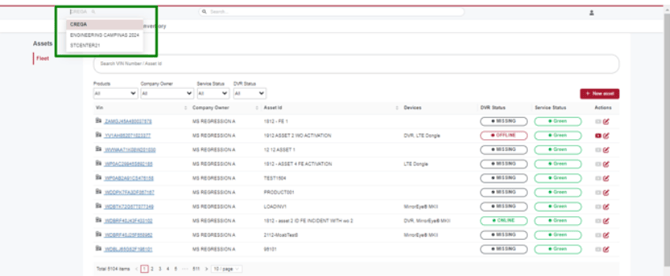
- Choose My Stoneridge available site

- The Center that the technician is allowed to work will be displayed in the drop down if applicable. Select your center.
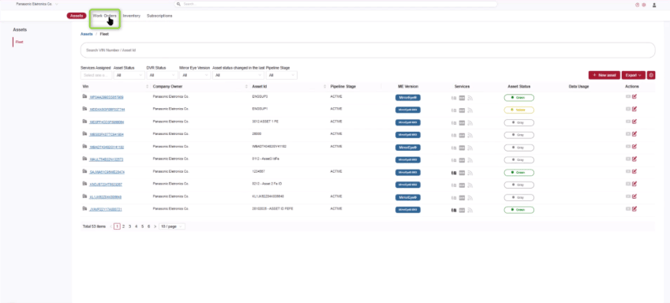
- Select the Work Orders screen
- Using filters for "Status and "Has Dongle/DVR": set to "OPEN" Status, and installation type "Yes" or "No" for Has Dongle/DVR.
NOTE: when filters are set you can also use the search field to sort the list down further by company name.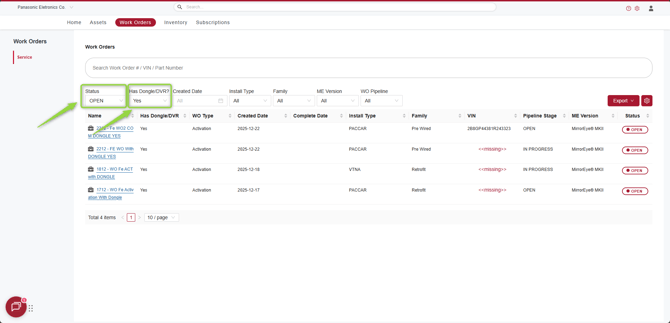
- Select an available for the vehicle owner company and type of installation that is being completed (with or without Dongle/DVR).
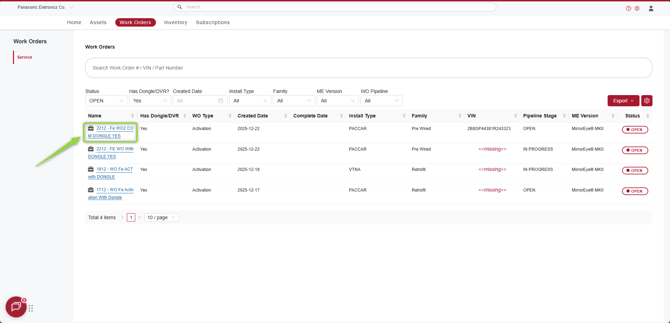
-
STEP 02: Create or Attach Asset inside the Work Order
-
-
Inside the selected Work Order page, click the "Attach asset" red button.
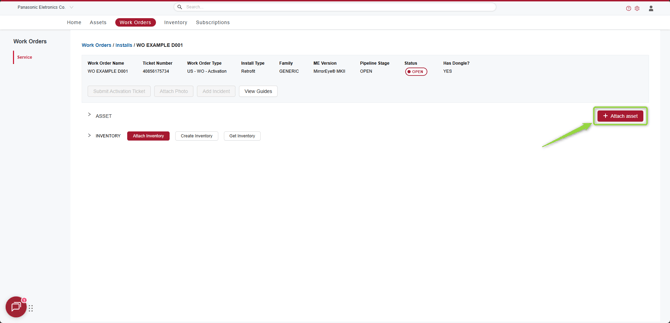
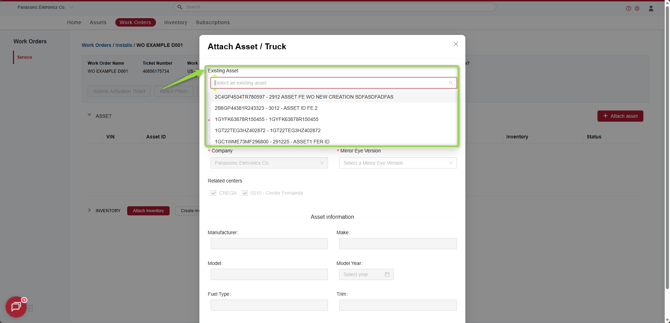
- If the Asset was already created, search by VIN and select in the Existing Asset field.
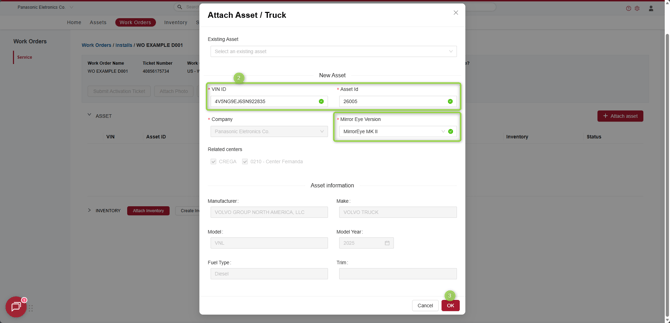
- If not, create by filling in the VIN, Asset number and select the Mirror Eye Version from the drop down (2). Then select the ok button (3).
- The asset will be created or attached to the selected work order.
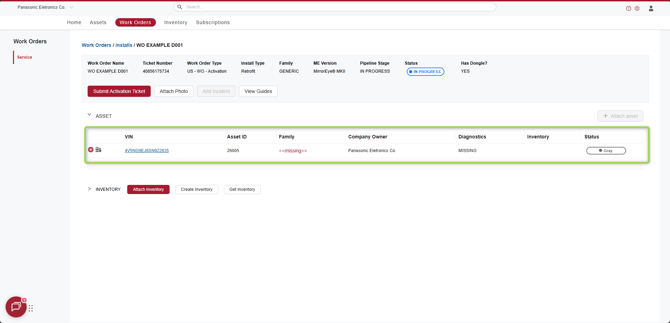
-
STEP 03: Sync Inventory Reported to the Cloud
-
-
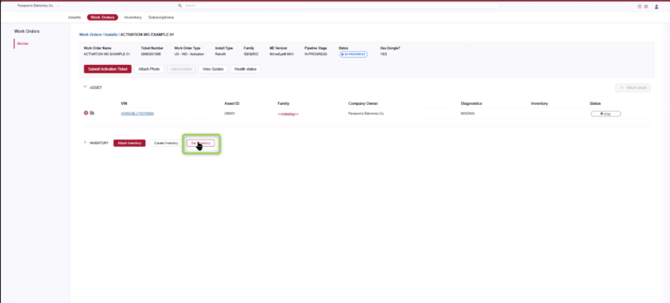
Select the button "Get Inventory" in the inventory section.
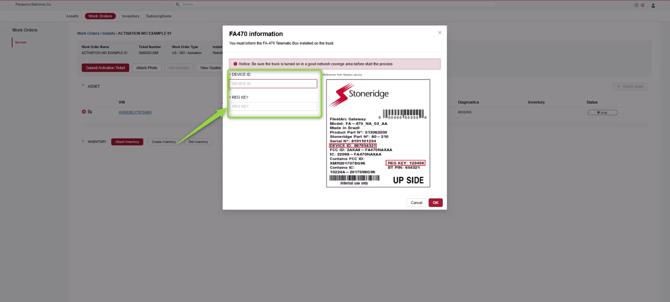
- Enter the FA470 Device ID and Reg Key example in image shown. Then select OK.
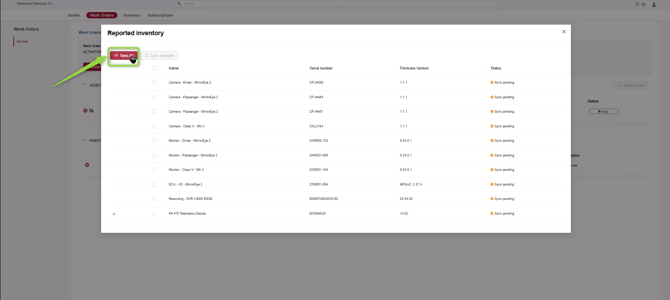
- Wait for all inventory detection and Sync All.
-
Get Inventory button on Work Order and/or Inventory Screen
-
The Get Inventory feature can take approximately up to 1 minute to finish following the recommended 15 minute powered on period.
-
Verify number of listed components:
-
11 with DVR/dongle.
-
9 without DVR/dongle
-
-
If all components do not appear in the list complete the following
-
Truck has been keyed on for the recommended time to sync data to the cloud service; refresh get inventory search. Does remaining inventory become available to sync? If No, continue to step 2.
-
Verify the FA470 device is installed in the recommended location and is in the correct orientation (led flashing light towards the sky) if correction was needed, repeat get inventory and sync. Continue to step 3 if still not resolved.
-
Verify all connectors are fully seated repeat get inventory. If any lose connections were found or corrected, complete a full power cycle of the system (ignition off for 2 mins) turn back on and restart the 15 min data collection process before retrying the get inventory process.
-
After inventory sync is complete, close the inventory page.
-
-
Note for DONGLE (if equipped): Auto reporting of the dongle was enabled with DVR firmware 02.04.03. If the installed DVR has older firmware, the dongle may need to be created manually.
-
-
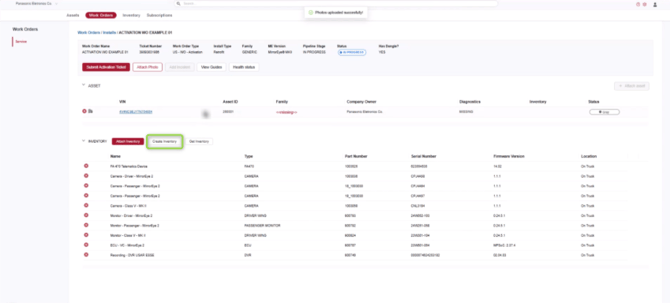
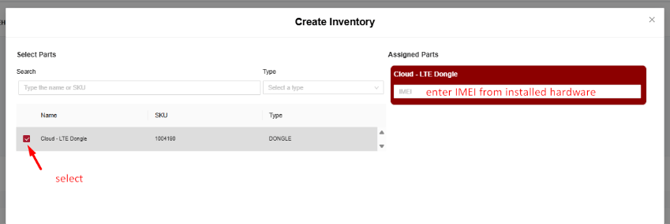
Select the "Create inventory" button.
- Select Cloud - LTE Dongle and enter the IMEI number found on the box of the device or on the device label.
-
STEP 04: Attach Required Photos to the Work Order
-
-
Select "Attach Photo" button.
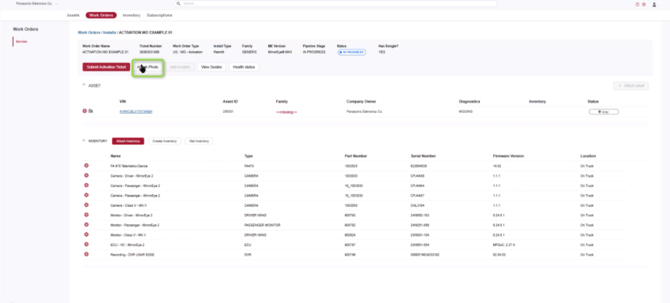
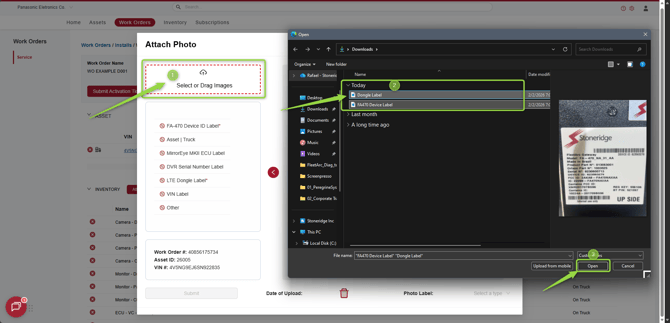
- Using the select or drag images feature (1), select (2) and upload at least the minimum required photos (FA470 and LTE Dongle) (3).
- After upload is complete, select a label to identify the inventory of each photo.
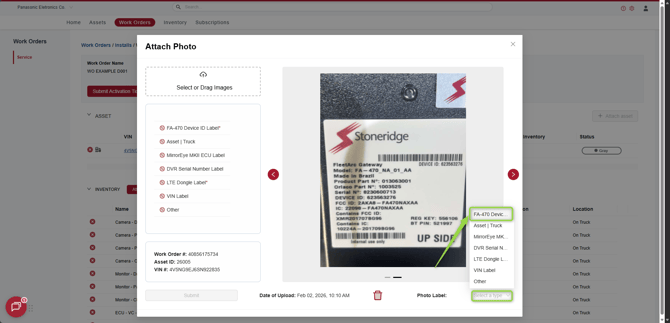
- After all photos uploaded and labeled, select "Submit" to save.
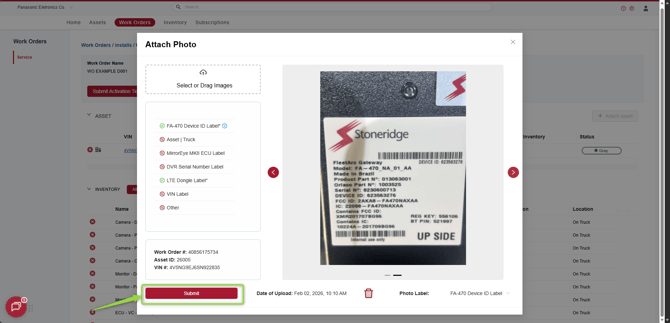
-
STEP 05: Review and Submit the Work Order
-
-
Confirm all components installed are listed in the inventory list and select the "Submit Activation Ticket".
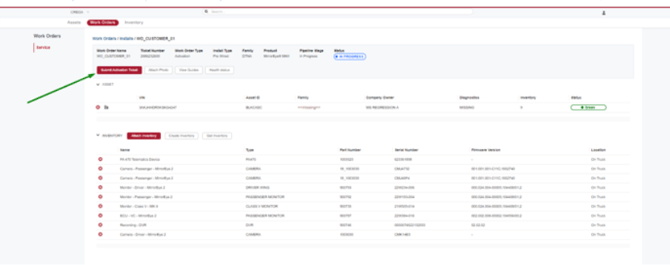
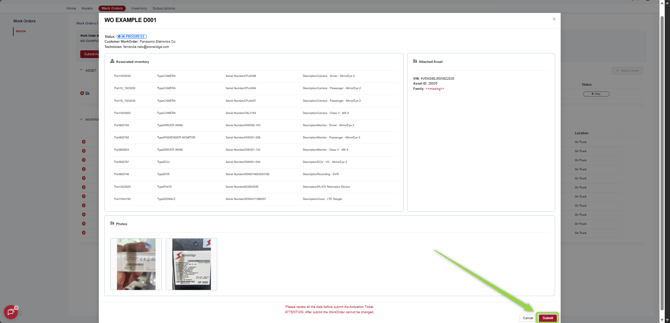
- Review the Work Order summary and click on "Submit" button.
- A report will be displayed with the message that the Work Order was submitted.
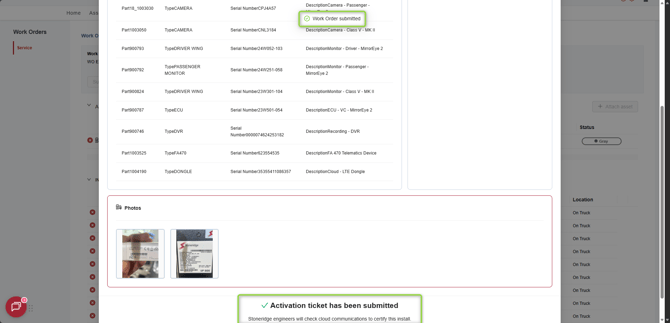
-
**NOTE**
Detail about Asset Status: Gray, Green, Red, Yellow and N/A
-
Gray – during “in progress” work order process
-
Green – submitted or completed work order. Need to test if ignition cycle will update service status from green.
-
Red – SEV 1 errors reported by the system, needs investigation and resolution prior to asset release
-
Yellow – SEV 2 – 4 errors reported by the system, needs investigation and resolution prior to asset release
- N/A - Will display if the Vehicle is equipped with a MirrorEye I (MEI) system or an OEM system. Enhanced Diagnostics is not available in these instances
Rel 2/2026 Rev 2/6/2026