![stoneridgeapp.png]](https://www.stoneridge.app/hs-fs/hubfs/stoneridgeapp.png?height=50&name=stoneridgeapp.png)
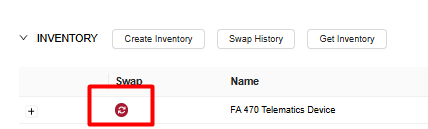
When an FA470 device is replaced, it is necessary to update the associated part in the Stoneridge portal. The "swap" icon has been updated to be available on all workspace types for this function.
Step 1: Log in to Mystoneridge.App Portal
If you do not have portal access, please speak with leadership and request user access.
If you have portal access but your workspace does not have access to the vehicle being serviced, please reach out to Stoneridge Technical Support via chat or email to incident@stoneridge.com
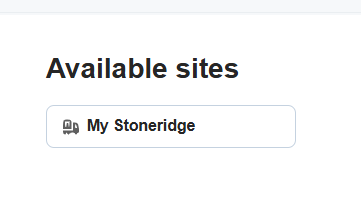
Step 2: Select your workspace page from the Available Sites My Stoneridge button
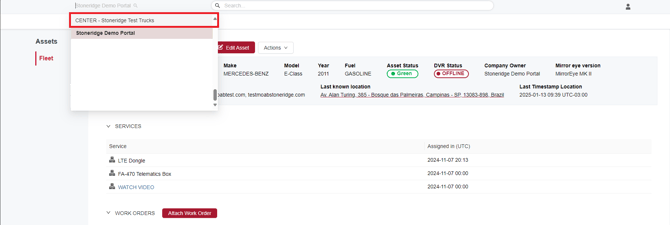
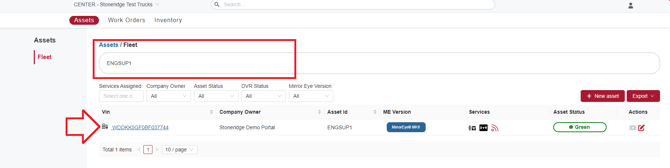
Step 3: Search for the asset you are going to perform the Swap, by VIN or Asset ID, the filtered result will show up:
Step 4: Click on the VIN number hyperlink to open the asset detail, there you will find all the inventory and the Swap Button feature:
Step 5: Select the available swap button related to FA470 or Dongle
if the DVR firmware is the on the latest version (2.4.3) the dongle will auto update, if older versions then the dongle must me manually swapped.
Swap should only be used for the FA470 device or dongle, other components should be synced via get inventory button.
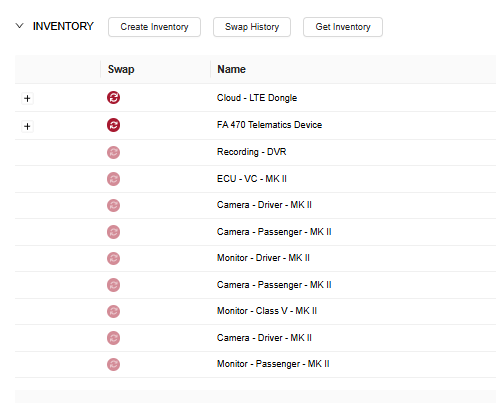
Example: Swap of a FA470 Telematics Device
All fields are required to complete the device swap and association.
When new device is installed, it must be in proper orientation with the flashing LED facing the sky and in an open-air space to allow for connection to the Stoneridge server.
After the swap is complete and if the device established a good server connection the portal will automatically display the get inventory sync page.
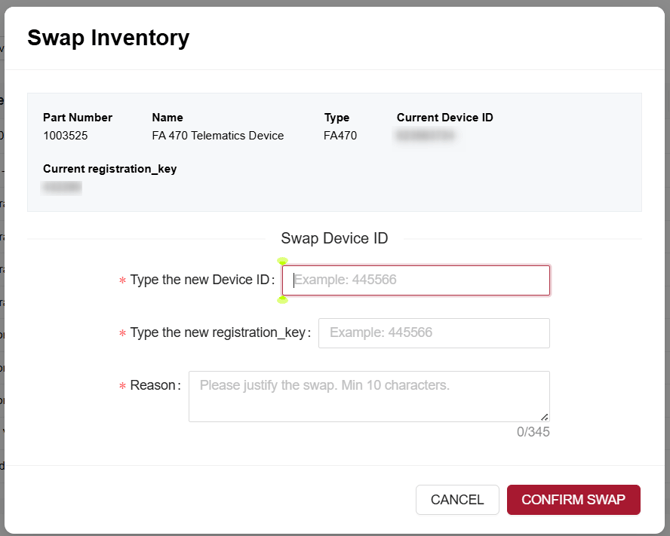
The portal will perform a check to verify the device detail is not already assigned to another asset.
If the serial isn’t assigned to any tuck, then a confirmation message will be displayed showing that the assigned update was made and the new device is associated.
If an error message is returned, confirm the entered information is correct and try again, if error persists, please contact MirrorEye Support by e-mail or live chat for assistance.

UPDATE VALIDATION:
Refresh the browser page displaying the asset, look in the inventory section of the asset and you should now see the updated device. you will need to allow the device to communicate with the Stoneridge service for approximately 10 - 15 mins then can use the get inventory button to sync any remaining components
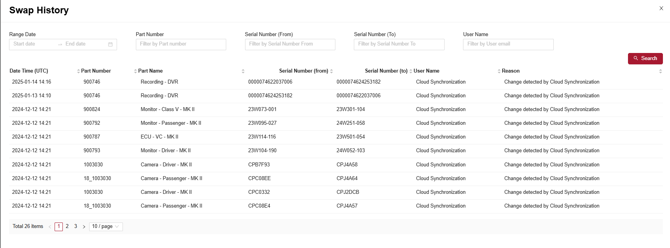
You can check the Swap History, with parts swapped by clicking on "Swap History"
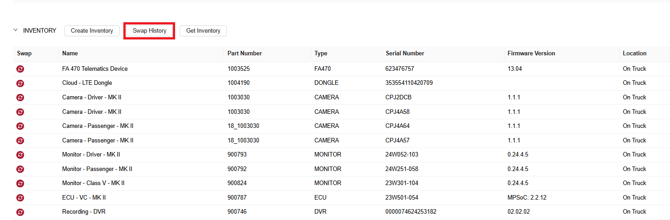
Information about which part, when was performed, reason and user will be displayed.
Published: 7/14/2026 Revision: 7/14/2026