![stoneridgeapp.png]](https://www.stoneridge.app/hs-fs/hubfs/stoneridgeapp.png?height=50&name=stoneridgeapp.png)
1. First Login and MFA Enrollment
- Open the login page for My.Stoneridge.app
- Enter your username and password.
- Select Login.
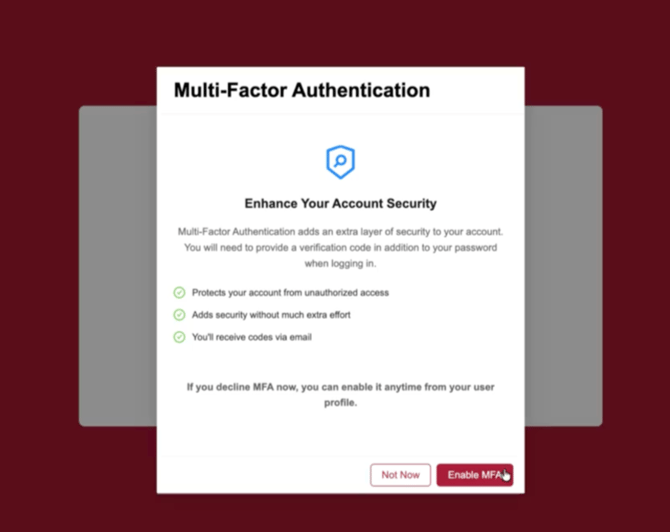
- If this is your first login since the release of Multi-Factor Authentication, a pop up will appear allowing you to choose to Enable or select "not now". If you choose to select "Not Now", the pop up will repeat every 30 days from the opt out.
- When you select Enable MFA a One Time Passcode will be sent to the email registered with your user account. Please have access to that account and continue with the set up for MFA.
2. Signing In with an OTP Code
- Check your registered e-mail inbox for a 6-digit verification code.
- Enter the 6-digit code on the MFA verification screen.
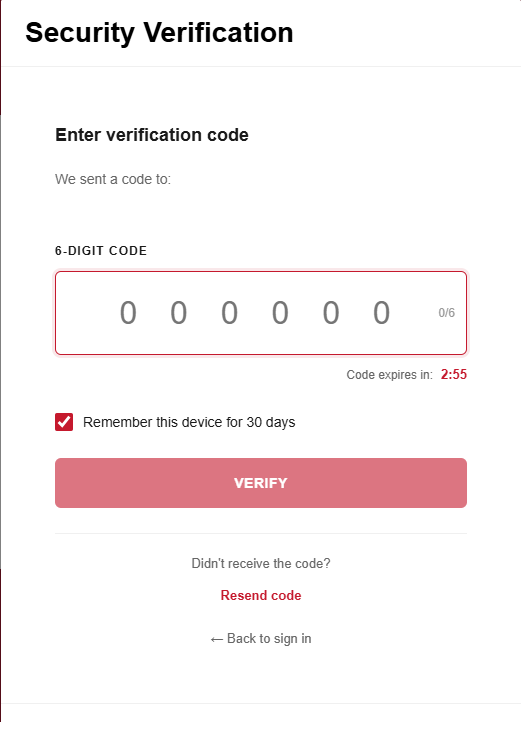
- Select Verify.
- If the code is valid and entered before it expires, the login will be completed successfully.
- You have the option of selecting "Remember this device" during the verification. Use caution if the device is shared or public device.
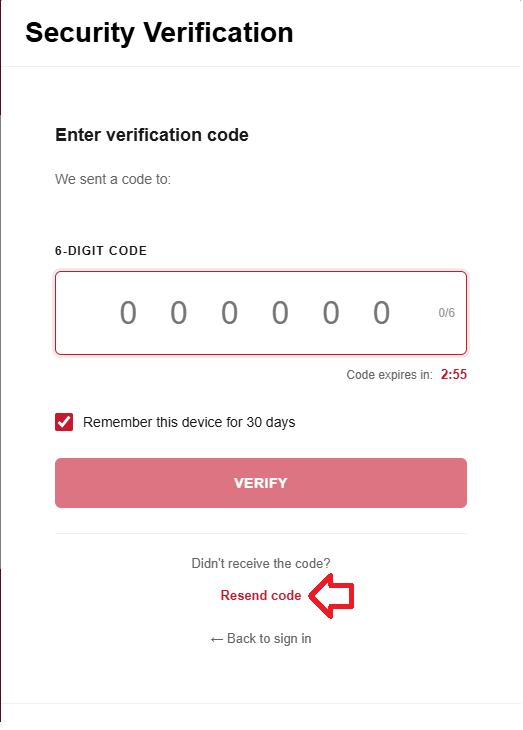
- If you do not receive the OTP e-mail, wait a short moment and check your inbox again.
- Check your spam, junk, or quarantine folders.
- On the MFA verification screen, select Resend code.
- Use only the most recent OTP code received.
- If multiple codes were sent, older codes no longer work.
- During completing OTP verification, the system shows Remember this device option.
- Select this option only on a personal or trusted device.
- Confirm your selection.
- On future logins from the same browser/device, MFA may be skipped while the device remains trusted.
- If you use a different browser, different device, clear browser data, change your password, recover your account, or the trusted period expires, MFA verification will be required again.
5. Managing and Revoking Trusted Devices
- After signing in, open your user profile or account menu.
- Go to Account.
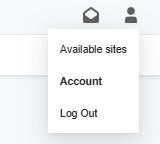
- Under Security in the left pane menu options, you'll see the Trusted Devices.
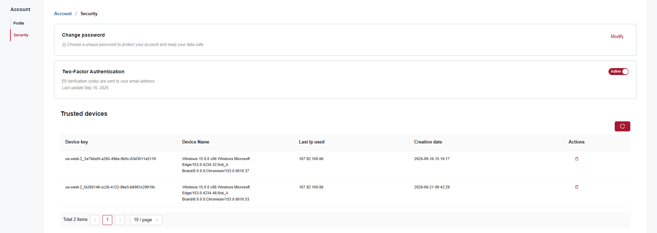
- Review the list of devices that are currently remembered for your account.
- To remove one device, click on the trash bin icon, next to the device.
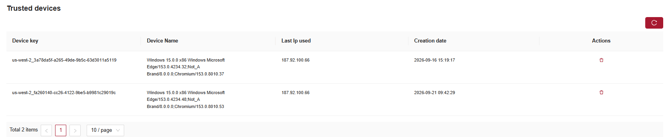
- Confirm the action when prompted.
- After a trusted device is revoked, the next login from that device will require MFA verification again.
- You may also Enable / Disable MFA - Authentication challenge is necessary

6. When MFA May Be Required Again
- You are logging in from a new or unrecognized device.
- You are using a different browser or private/incognito session.
- Your trusted device period has expired (30 days)
- You cleared browser cookies or site data.
- Your password was changed or recovered.
- Your MFA settings were reset or modified.
|
Issue |
What to Do |
|
OTP e-mail not received |
Wait briefly, check spam/junk folders, confirm you are using the correct registered e-mail, then request a new code. |
|
OTP code expired |
Select Resend code and use the newest code received. |
|
Invalid OTP code |
Confirm the code was typed correctly and that it is the latest code sent to you. |
|
Too many failed attempts |
Wait for the temporary restriction to clear or contact support if access remains blocked. |
|
Trusted device not recognized |
Complete MFA again. This may happen after clearing browser data, changing browsers, using a new device, or after the trusted period expires. |
8. Security Recommendations
- Do not share your OTP code with anyone.
- Do not approve or continue an MFA process that you did not initiate.
- Use Remember this device only on devices that you own or trust.
- Do not remember shared, public, or temporary devices.
- If you suspect unauthorized access, change your password and contact support immed/iately.
Published: 9/2026 Revised: xx/xxxx